
Your first planner
This walks through the whole path once: create a planner, look at it, print a month. It works the same on a hosted site and on your own computer.
1. Create the planner
Section titled “1. Create the planner”Open the app. The start page (the dashboard) has the New planner form.
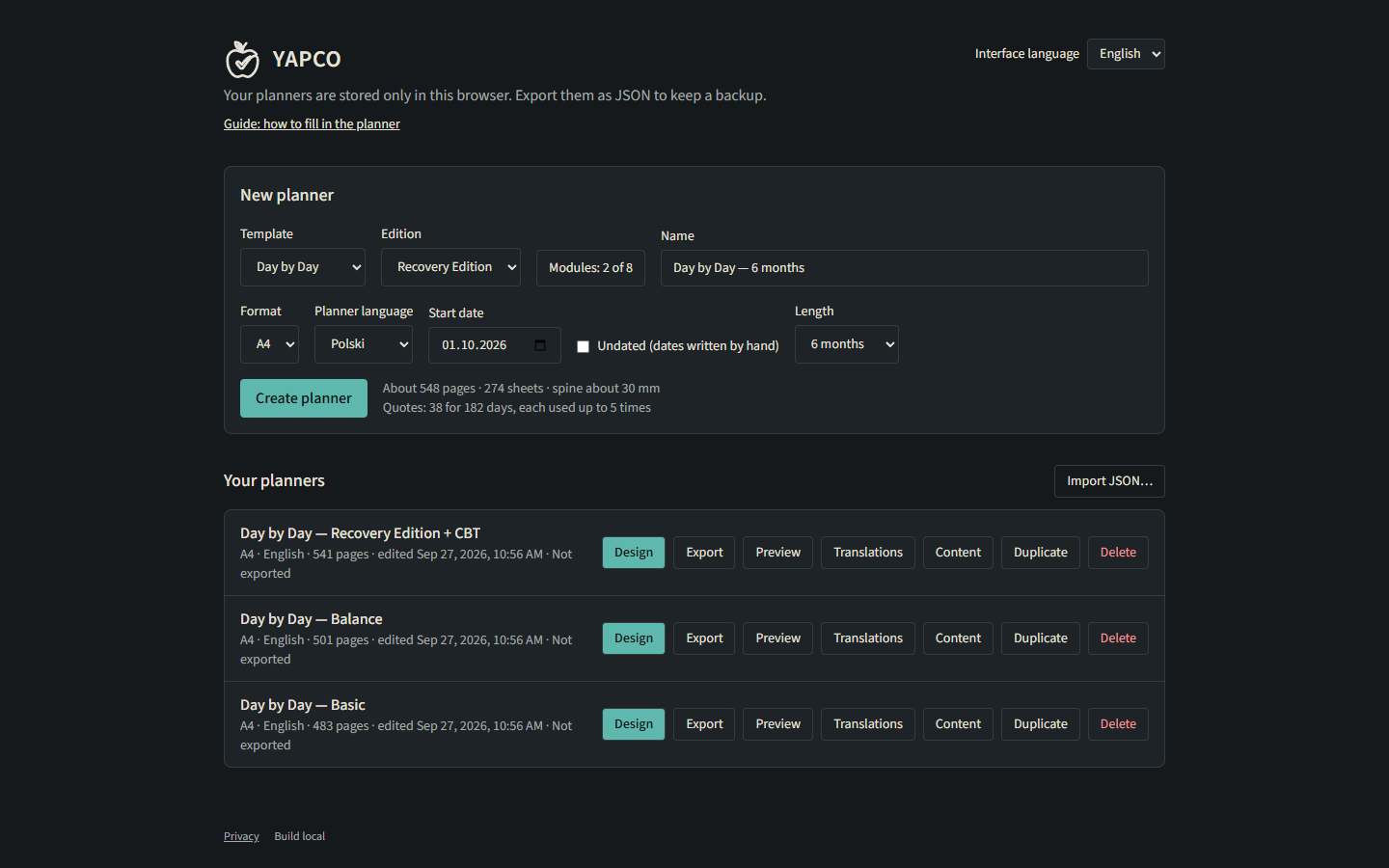
- Template: Day by Day for a day planner, Week by Week for a weekly one.
- Edition: Basic, Balance or Recovery Edition (what is the difference?). Modules below it add or remove single parts.
- Format: A4 or A5. You can change it later; your edits carry over.
- Planner language: Polish or English, independent of the interface language.
- Start date and Length. Tick Undated to write the dates by hand.
- Name (also used for the PDF file names), then Create planner.
The page count and the spine width update as you change the settings.
2. Look at it
Section titled “2. Look at it”The planner opens in the Design screen. Use the tabs at the top:
- Preview: spreads at real size. Switch on Example filling to see each page filled in by hand, in grey.
- Design: change pages and blocks (the designer).
- Content and Translations: quotes, prompts and texts in both languages.
Everything saves by itself (“All changes saved”).
3. Print one month
Section titled “3. Print one month”- Click Export (top right).
- What to print: pick one month. Months always fill whole sheets, so you can file them one at a time.
- How you print: Two-sided, automatic if your printer prints both sides; otherwise Two-sided, by hand.
- Create PDF. The file downloads.
- Print at Actual size / 100 %, never “fit to page”.
The first time, print the calibration sheet as well: see Printing at home.
4. Keep a backup
Section titled “4. Keep a backup”Planners live only in this browser. Once a week: Export → Save planner as JSON. See Backups and moving planners.