

The designer
The Design screen has three panels: the structure and components on the left, the page at real size in the middle, and the properties of what you select on the right.
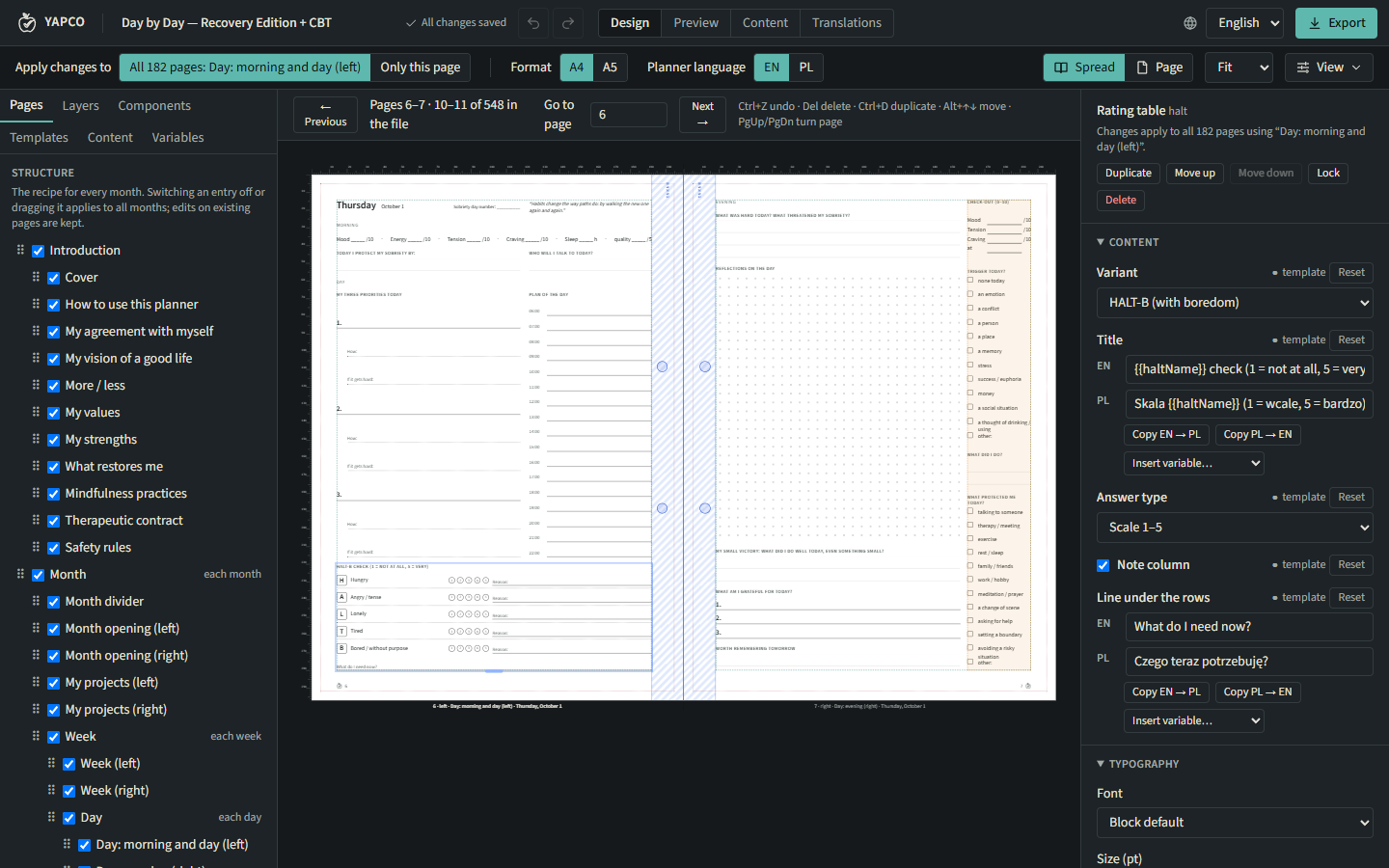
The left panel
Section titled “The left panel”| Tab | What it is for |
|---|---|
| Pages | The planner’s structure: sections, and what repeats each month, week and day. Switch an entry off to leave it out of every month, or drag it to reorder. |
| Layers | The blocks of the current page, in groups. Drag to reorder within a group. |
| Components | Blocks you can drag onto the page: text, writing lines, dot grid, lists, scales, calendar, HALT-B, Wheel of Life, contacts, images… |
| Templates | The page layouts of the template; Show first page jumps to one. |
| Content | Shortcut to quotes and prompts. |
| Variables | Values printed on the pages, such as your name; those filled in automatically are listed separately. |
One page or all of them
Section titled “One page or all of them”At the top, Apply changes to decides what an edit changes:
- All pages using this layout (the default): change every day page at once, for example.
- Only this page: change one date only. Such blocks are marked Changed on this page only, and Reset this page removes those changes.
Your edits survive regenerating the planner for new dates.
Blocks
Section titled “Blocks”Click a block to select it. In the properties panel you can:
- edit its texts in both languages side by side, and Copy PL → EN when a text is missing;
- change the typography (font, size, weight, line height, alignment, colour);
- change the layout: height (fit content, fixed mm, a share of the free space), padding, border, corner radius;
- choose where it prints: every page, left-hand pages only or right-hand pages only;
- Duplicate, Move up / down, Lock, Hide on this page or Delete it.
Blocks with different wording per module show a Module wording group.
The canvas
Section titled “The canvas”- View: a spread or one page; zoom and Fit.
- Guides show the binding margin (inner) and the outer margin; the 5 mm grid and Snap help to place blocks.
- Format and Planner language switch the whole planner; your edits carry over.
- Undo and Redo (Ctrl+Z, Ctrl+Y) cover every change.
The page number box lets you jump to any page (Go to page).